Synced Actions
The fastest way to put an action button on the phone is to not touch the phone at all. An agent — Claude on a laptop, say — creates a HTTP action tile by writing a small JSON file into a folder that syncs to the device. No pairing, no on-phone server, no on-device builder: the agent just writes a file, and the button appears.
Roost imports HTTP actions from a folder the owner shares to the phone with Syncthing. It reads every
actions.d/*.json file in that folder and turns each into an HTTP action button. Add a file and a button
appears; edit it and the button changes; delete it and the button goes away — each on the next sync.
Actions you built by hand on the device are never touched.
This realizes ADR-0006 and is formalized in SPEC-0003.
One file, one action
Each actions.d/<name>.json file describes a single HTTP action, keyed by a stable id:
{
  "id": "deploy-prod",
  "title": "Deploy prod",
  "method": "POST",
  "url": "https://ci.example.com/hooks/deploy",
  "auth": "bearer",
  "secret": "ghp_your_token_here",
  "headers": { "X-Environment": "production" },
  "body": "{ \"ref\": \"main\" }",
  "icon": "rocket"
}
id,title,method, andurlare required. Everything else is optional.authisnone,bearer, orhmac, and behaves exactly like the on-device builder's auth.secretis optional. When present, Roost stores it in its own secret store — the same masked, redacted handling as a hand-entered secret. Because the raw token lives in the file until it's imported, only put asecretin a private, device-to-device synced folder.iconis a selfh.st / Simple Icons / Heroicons slug or a full URL, fetched through the same icon store the builder uses. Monochrome Simple Icons / Heroicons glyphs are tinted with your accent on the tile so they match the theme; full-color selfh.st logos keep their real colors.
The id is the reconcile key, so keep it stable across edits — changing a file's id reads as delete the
old action, add a new one.
How it reconciles
The folder is the source of truth for synced actions, and the reconcile is declarative — Roost makes the device match the files, not the other way around:
- Add or edit a file → the action is upserted (created if new, updated in place if the definition
changed, same
id). - Delete a file → the action is removed. Removal is driven by a file actually being gone, so a mid-write or malformed file never nukes a working action.
- Scoped to synced ids only. Roost tracks the set of ids it imported and only ever touches those. Actions you made on the device have ids that were never in that set, so a sync — even one that removes synced items — leaves them exactly as they were.
- Order is preserved. A reconcile keeps the existing home order of actions already present and appends newly-imported ones; it never reshuffles your arrangement.
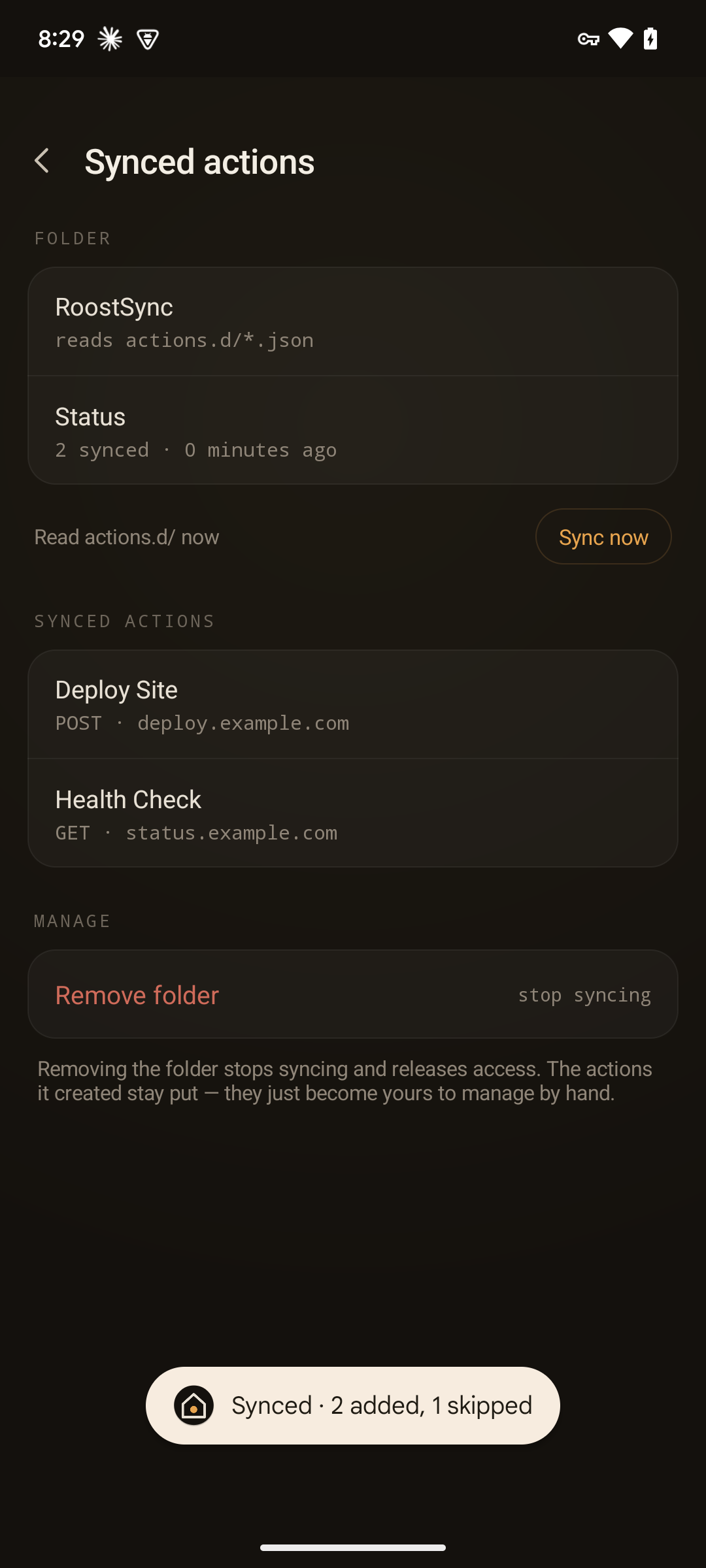
A reconcile runs when you tap Sync now on the Synced Actions screen, and automatically when the home surface resumes — so a file that synced while the phone was idle shows up the next time you return home.
Setup
Point Roost at the shared folder once:
Settings → Apps, Tiles & Content → Action Buttons → Synced Actions → Grant a folder.
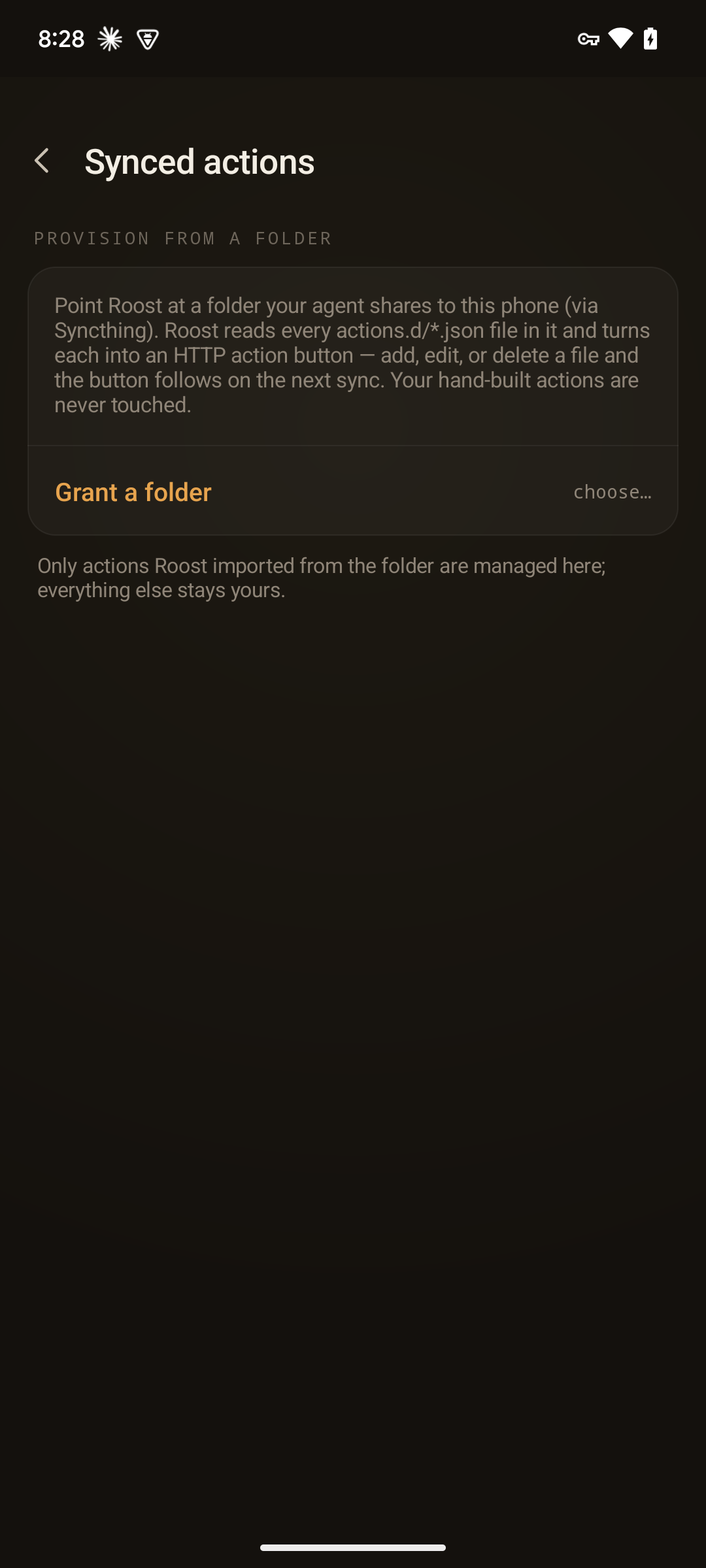
Grant a folder opens the system folder picker (the Storage Access Framework). Choose the
Syncthing-shared folder that contains your actions.d/ directory. The grant is a persistable tree URI,
so it survives restarts — you pick the folder once, not every launch.
Once granted, the screen shows the folder, the imported-action count and last-sync status, a Sync now button, and a way to clear the grant:
Framework-only, of course
No libraries here either. The folder is a Storage Access Framework persistable tree URI; Roost enumerates
actions.d/ with DocumentsContract, reads each file through ContentResolver, and parses it with
org.json. See How it works for the files and
ADR-0001
for the constraint.